

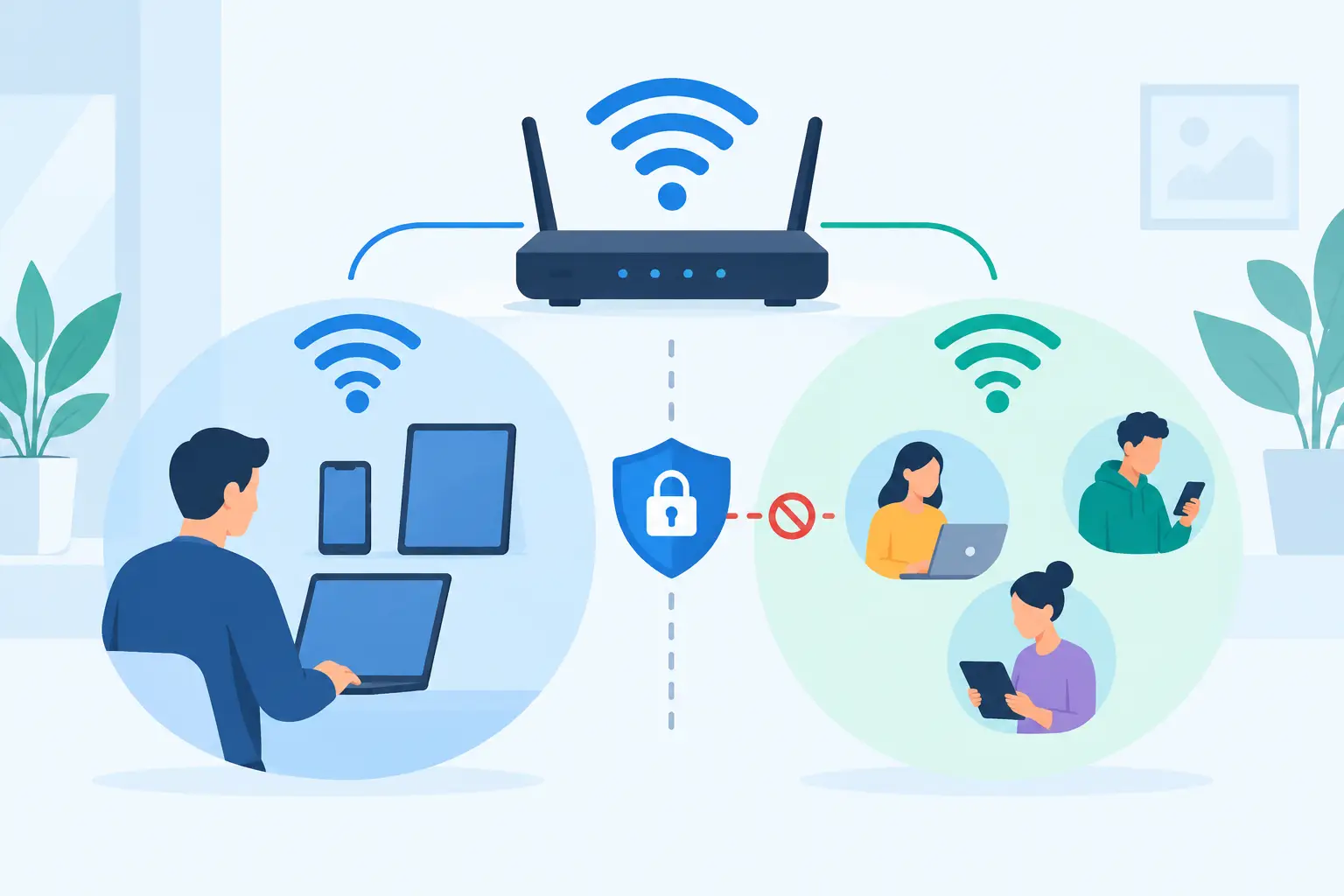
A guest WiFi password is not enough to protect your business network. When you configure guest wifi isolation correctly, visitors can reach the internet without seeing employee laptops, shared files, cameras, payment systems, printers, or other connected equipment. That separation matters whether you operate a busy Miami office, a retail location, a medical practice, or a temporary event network.
Guest access is a convenience your customers, vendors, candidates, and event attendees expect. It should not become an unmonitored pathway into systems that support daily operations. The goal is simple: provide dependable internet access while keeping guest devices contained in their own controlled environment.
What Guest WiFi Isolation Actually Does
Guest WiFi isolation prevents devices connected to the guest wireless network from communicating with devices on your private business network. In many configurations, it also prevents guest devices from communicating with one another.
Those are two related but different controls. Network isolation separates the guest network from internal business resources. Client isolation, sometimes called wireless client isolation or AP isolation, stops one guest phone or laptop from discovering, scanning, or connecting to another guest device on the same WiFi network.
Using both controls is usually the right approach for public-facing business WiFi. A guest should be able to browse the web, check email, and join a video call. They should not be able to locate the accounting workstation, access a network video recorder, or probe the laptop belonging to the person sitting beside them.
This is especially relevant in environments with many unknown devices. Event WiFi, waiting rooms, conference areas, shared offices, hospitality spaces, and retail locations can bring dozens or hundreds of personal devices onto the network in a single day. Each device may be fully legitimate, but it is not managed by your business and should not be trusted like an employee-issued computer.
Why Guest Network Separation Protects Operations
A flat network places every device in the same digital room. If a guest connects to that network, they may be able to discover devices and services that were never intended to be public. Even if a device requires a password, visibility alone creates unnecessary risk.
Proper isolation reduces the chance that a compromised visitor device can move laterally through the environment. It also limits accidental access. A guest trying to print a boarding pass should not be able to send it to an internal printer, and an employee should not have to sort through nearby personal devices when connecting to a conference-room display.
There is also an operational benefit. Keeping guest traffic separate helps IT teams troubleshoot performance problems, apply appropriate bandwidth limits, and preserve capacity for business-critical applications such as VoIP calls, cloud platforms, point-of-sale systems, and video surveillance. During an event, this separation can be the difference between a smooth guest experience and a congested network that disrupts staff operations.
How to Configure Guest WiFi Isolation
The exact menus vary by firewall, wireless controller, and access point manufacturer. The underlying design should remain consistent: create a separate guest wireless network, place it on a separate network segment, block access to private resources, and verify the policy with real-world testing.
Start with a separate guest SSID and VLAN
Create a dedicated guest SSID, such as “Company Guest” or “Event Guest WiFi.” Do not attach it to the same network segment used by workstations, servers, phones, cameras, and management interfaces.
Assign the guest SSID to its own VLAN and IP address range. For example, your internal devices may use one private subnet while guests receive addresses from a separate guest subnet. The VLAN provides the foundation for enforcing security rules at the firewall or Layer 3 gateway.
Avoid relying on a different password alone. Two WiFi names that lead to the same unrestricted network do not provide meaningful separation.
Turn on wireless client isolation
In the access point or wireless controller settings, enable client isolation for the guest SSID. This setting may be labeled AP isolation, peer-to-peer blocking, device isolation, or intra-VLAN blocking.
Once enabled, guest devices should not be able to communicate directly with each other. This helps prevent file-sharing attempts, device discovery, local scanning, and certain attacks between visitors using the same wireless network.
There are exceptions. If you are intentionally providing a guest wireless printer, presentation screen, or other shared device, client isolation may interfere with that service. In that case, a better design is often to provide that resource through a tightly controlled access rule rather than leaving all guest devices visible to one another.
Add firewall rules that block internal access
The firewall should deny traffic from the guest VLAN to internal networks by default. This includes the subnets that contain employee computers, servers, network equipment, VoIP phones, surveillance systems, storage devices, and administrative interfaces.
The guest VLAN should be allowed to reach the internet through the firewall. It will also need access to services required for basic connectivity, including DNS and DHCP. If your guest network uses a captive portal, allow the services needed for authentication and terms acceptance.
A practical rule order is important. Place specific blocks and required service allowances ahead of broad internet access rules. Review IPv6 as well as IPv4. A network can appear protected on IPv4 while an overlooked IPv6 policy creates an unintended route to internal resources.
Secure the guest network itself
Isolation is only one layer. Use a strong, current WiFi security setting, ideally WPA3 where your equipment and client devices support it. WPA2 remains common for compatibility, but open guest networks create more exposure and should be carefully designed if used.
For offices, change the guest password periodically or use a captive portal with time-limited credentials. For events, temporary credentials can reduce the chance that an old attendee retains access after the event has ended. Avoid posting a permanent password that gives former visitors indefinite access to your building’s wireless network.
Consider adding reasonable bandwidth controls. Limit a single guest device from consuming all available upload or download capacity, particularly where staff depend on cloud applications and business calling. The right limit depends on the available internet connection, expected guest count, and the type of activity you want to support.
Test Before You Treat It as Protected
A guest network is only isolated if testing confirms it. Connect a phone or laptop to the guest SSID and try to reach a known internal device, such as a printer’s web page or an internal server address. The connection should fail.
Then confirm that guest users can perform the activities you intend to allow: browse websites, resolve domain names, connect to approved portals, and complete a video call if that is part of the expected experience. Test with more than one device to confirm client isolation is working. One guest device should not be able to see or connect to another.
Also test after network changes. A new firewall, access point replacement, internet upgrade, or wireless controller update can alter VLAN assignments and policy behavior. Document the guest SSID, VLAN, address range, security settings, and firewall rules so future changes do not weaken the design.
Common Mistakes That Leave Guest WiFi Exposed
The most common mistake is creating a guest SSID without creating a separate VLAN. Another is separating the VLAN but failing to block guest traffic at the firewall. In both cases, the network may look organized while still allowing access to internal devices.
Businesses also sometimes enable client isolation but assume it protects the private network. It does not. Client isolation blocks communication between wireless clients on the same SSID. You still need network segmentation and firewall controls to keep guests away from business systems.
Finally, do not forget wired connections. A visitor who plugs into an open Ethernet jack may bypass wireless guest controls altogether. Unused wall ports should be disabled, and public-facing wired ports should be assigned to an appropriately restricted guest network.
When Professional Configuration Makes Sense
Guest WiFi isolation becomes more complex when a business has multiple locations, managed switches, VoIP phones, security cameras, payment systems, cloud-managed wireless equipment, or temporary event connectivity. The challenge is not simply turning on a setting. It is making sure every device, VLAN, firewall policy, and exception works together without disrupting operations.
CompuSOURCE helps South Florida organizations design and manage business networks that keep staff connected while protecting critical systems from guest access. A properly planned configuration gives employees the access they need, gives visitors dependable internet, and gives management clearer control over network risk.
Treat guest WiFi as a service with boundaries, not as an extension of your internal network. When those boundaries are planned, tested, and maintained, offering internet access becomes a practical customer benefit instead of a hidden operational concern.
Comments are closed